
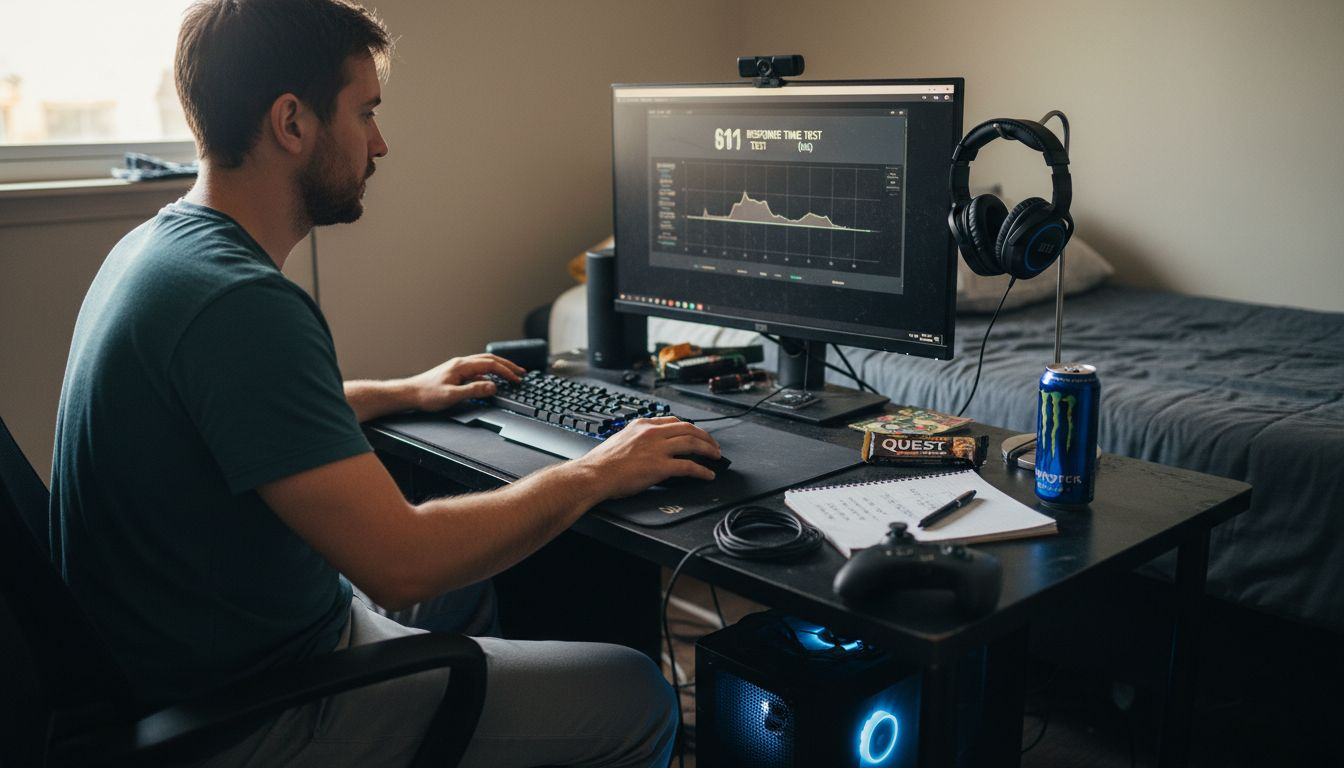
Finding the right gaming accessories can feel overwhelming when every fraction of a second counts in competition. For professional gamers and esports athletes from Japan to Germany, optimizing hardware is more than personal preference. A structured approach to evaluating and upgrading your gear, backed by performance evaluation standards, lets you pinpoint weaknesses and create a setup that responds at the speed of gameplay. You’ll discover actionable strategies for assessing, updating, calibrating, personalizing, and monitoring your equipment for consistently better results.
$ads={1}
Quick Summary
| Key Point | Explanation |
|---|---|
| 1. Assess All Gaming Accessories | Evaluate age, specifications, and performance to identify limitations and plan upgrades. |
| 2. Update Firmware and Drivers | Ensure accessories are running the latest updates for improved performance and compatibility. |
| 3. Calibrate Devices Regularly | Fine-tune settings for sensitivity and response to enhance precision and overall gameplay. |
| 4. Personalize Control Settings | Customize button layouts and lighting to reflect your gaming style and improve comfort. |
| 5. Monitor Performance Metrics | Track input latency and other metrics routinely to ensure consistent accessory performance. |
Step 1: Assess Current Accessory Setup
To optimize your gaming accessories for peak performance, the first critical task is conducting a thorough assessment of your current gaming setup. This step involves systematically evaluating every piece of hardware and peripheral to understand its current capabilities and potential limitations.
Start by mapping out all gaming accessories connected to your system, including mouse, keyboard, headset, controller, and any additional peripherals. Performance evaluation standards can help guide your assessment process by providing a structured framework for understanding hardware effectiveness. Create a detailed inventory that includes:
- Age of each accessory
- Technical specifications
- Perceived performance during recent gaming sessions
- Known functional limitations
Next, conduct a series of practical tests to measure real-world performance metrics. Check response times, precision tracking, ergonomic comfort, and compatibility with your primary gaming platforms. Pay special attention to hardware performance guidelines that outline optimal functional parameters for gaming accessories.
Here’s a quick summary of performance evaluation metrics for common gaming accessories:
| Accessory Type | Key Metric | Improvement Impact |
|---|---|---|
| Mouse | Tracking accuracy | Enhances aiming and speed |
| Keyboard | Response time | Boosts input speed |
| Headset | Audio clarity | Improves communication |
| Controller | Input sensitivity | Increases control precision |
| Other Peripherals | Compatibility rating | Expands platform usability |
A comprehensive accessory assessment provides the foundation for targeted performance improvements.
Pro tip: Keep a detailed log of your accessory performance tests to track improvements and identify specific upgrade opportunities.
Step 2: Update Firmware and Drivers
Upgrading your gaming accessories’ firmware and drivers is a critical step in maintaining optimal performance and ensuring compatibility with the latest gaming technologies. This process helps eliminate bugs, enhance functionality, and unlock potential improvements in your gaming hardware.
Begin by identifying the manufacturer and specific model of each accessory. Visit the official manufacturer websites and locate the support or downloads section. USB firmware upgrade standards recommend following these systematic steps:
- Check current firmware version
- Download latest firmware for your exact model
- Backup existing configuration settings
- Prepare a stable internet connection
- Close all unnecessary background applications
Carefully follow the manufacturer’s installation instructions, which typically involve running an executable update file or using a dedicated software utility. Accessory update troubleshooting suggests running update tools with administrator privileges to prevent potential installation errors.
Firmware updates can dramatically improve accessory performance and system stability.
Pro tip: Create a system restore point before performing any firmware updates to ensure you can revert changes if unexpected issues arise.
Step 3: Calibrate Devices for Accuracy
Calibrating your gaming accessories is a crucial process that ensures precise input recognition, eliminates performance inconsistencies, and maximizes your gaming control. By fine-tuning each device, you can significantly improve your overall gaming experience and competitive edge.
To begin calibration, open your device’s control panel settings. Gaming controller calibration techniques recommend systematically testing each input component. Follow these essential calibration steps:
- Connect your device to the computer
- Open device management settings
- Access controller or input device configuration
- Move joysticks through full range of motion
- Test button responsiveness and sensitivity
- Adjust dead zones and input thresholds
Precision matters. Joystick calibration strategies emphasize the importance of carefully mapping each input’s exact movement range. Use built-in Windows calibration tools or manufacturer-specific software to fine-tune analog stick sensitivity and button response times.
Accurate device calibration transforms good gaming into great performance.
Pro tip: Recalibrate your devices every few months or after significant hardware updates to maintain optimal input precision.
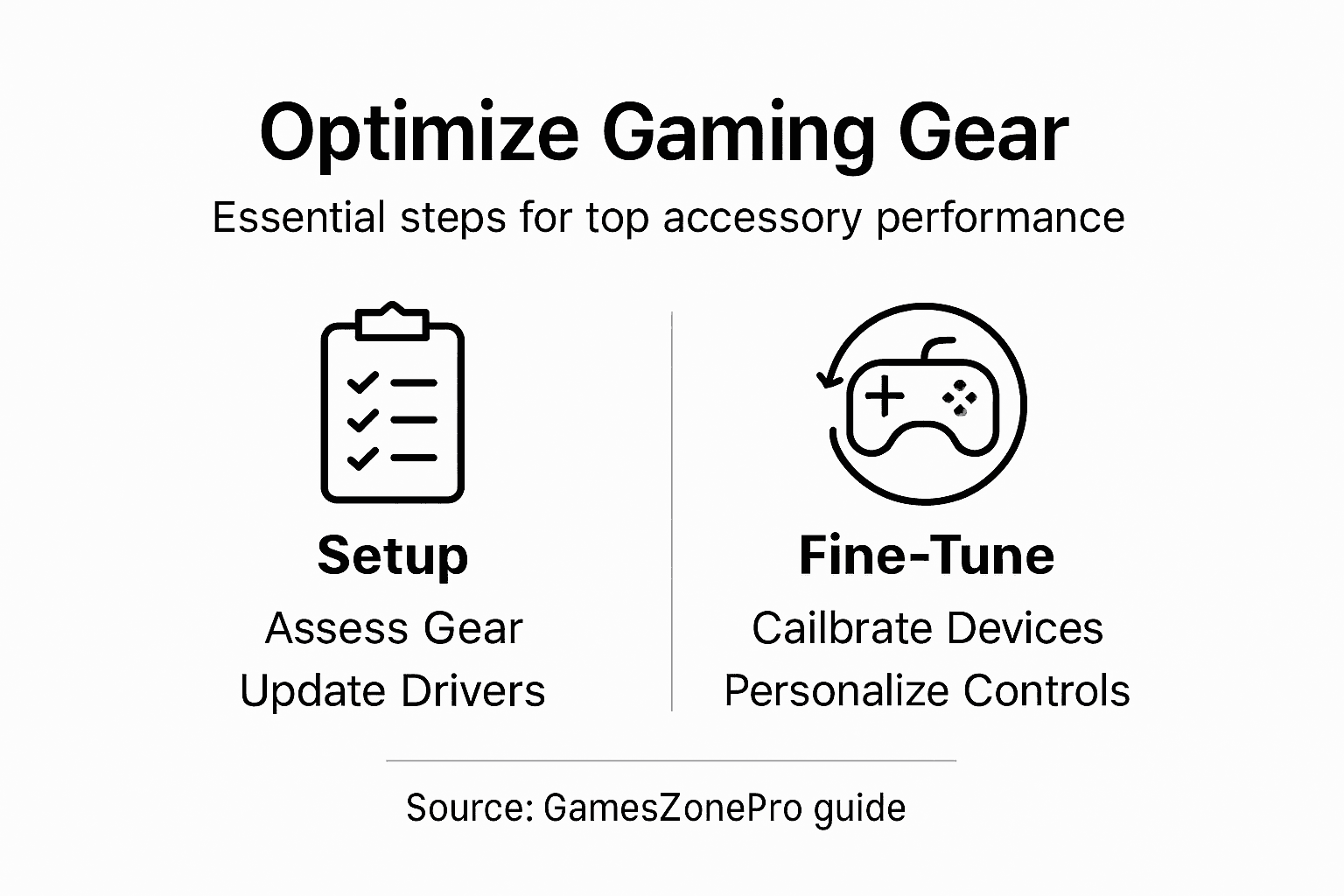
Step 4: Personalize Controls and Lighting
Personalizing your gaming accessories transforms standard hardware into a unique extension of your gaming style. This critical step allows you to create a more immersive, comfortable, and visually stunning gaming experience that reflects your individual preferences.
Cross-platform lighting control enables you to synchronize and customize your gaming setup’s aesthetic. Start by exploring your accessories’ configuration software and focus on these personalization options:
- Remap controller buttons for optimal comfort
- Adjust sensitivity and dead zones
- Create custom RGB lighting profiles
- Synchronize lighting across multiple devices
- Set up game-specific control configurations
Adaptive gaming equipment emphasizes the importance of making precise control modifications. Experiment with different button layouts, sensitivity settings, and unique lighting schemes that enhance both visual appeal and functional performance. Consider creating multiple profiles for different game genres or play styles.
Consider these advantages of calibrating and personalizing your gaming devices:
| Action | Benefit | Competitive Advantage |
|---|---|---|
| Calibration | Precise input mapping | Reduces errors and boosts accuracy |
| Control personalization | Customized button layouts | Adapts to personal play styles |
| Lighting profiles | Visual enhancement | Creates immersive atmosphere |
| Multi-profile setup | Game-specific configurations | Fast switching for tournaments |
True gaming personalization transforms hardware from generic to extraordinary.
Pro tip: Save multiple configuration profiles to quickly switch between competitive and casual gaming setups.
$ads={2}
Step 5: Test and Monitor Performance
Testing and monitoring your gaming accessories is the ultimate verification process that ensures your hardware performs at its absolute peak. This critical step transforms your setup from potentially good to definitively exceptional by identifying and resolving any performance limitations.
Device performance testing provides comprehensive insights into your gaming accessories’ capabilities. Focus on these key performance monitoring strategies:
- Measure input latency and response times
- Check refresh rate consistency
- Monitor temperature and thermal performance
- Track voltage and power consumption
- Identify potential performance bottlenecks
Hardware monitoring techniques enable you to gather detailed metrics about your system’s operational parameters. Use specialized software to run diagnostic tests, track real-time performance indicators, and establish baseline measurements for your gaming accessories. Pay close attention to temperature readings, fan speeds, and potential thermal throttling that might impact your gaming experience.
Consistent monitoring transforms good hardware into exceptional gaming equipment.
Pro tip: Create a performance baseline spreadsheet to track your accessories’ performance over time and quickly identify any degradation.
Take Your Gaming Accessories to the Next Level Today
Optimizing gaming accessories for peak performance is essential for every serious gamer seeking an edge. Whether you struggle with input lag, inaccurate controls, or lack of personalization, mastering steps like calibration, firmware updates, and control customization can transform your gaming setup. This article highlights how precise calibration, timely firmware upgrades, and personalized lighting and button configurations unlock greater accuracy and responsiveness.
Discover detailed guides, expert reviews, and the latest gaming tech insights at GamesZonePro. Don’t settle for less when your hardware can perform at its best. Take action now by visiting https://en.gameszonepro.com and start enhancing your accessory setup. Experience improved control, faster response times, and immersive customization built around your gaming style.
Frequently Asked Questions
How can I assess the performance of my gaming accessories?
To assess the performance of your gaming accessories, start by creating a detailed inventory that includes the age, specifications, and perceived performance of each item. Then, conduct practical tests to measure response times, precision tracking, and ergonomic comfort.
What steps should I follow to update my gaming accessories’ firmware and drivers?
Begin by identifying the manufacturer and model of each accessory, then visit the official support section on their websites. Download the latest firmware, back up your settings, and closely follow the installation instructions provided by the manufacturer.
How do I calibrate my gaming devices for improved accuracy?
Calibration involves connecting your device, accessing the control panel, and systematically testing input components. Adjust settings such as sensitivity and dead zones to ensure precise response and optimal control during gameplay.
What personalization options should I consider for my gaming setup?
Consider remapping buttons, customizing sensitivity settings, and creating unique RGB lighting profiles to enhance your gaming experience. By setting up game-specific configurations, you can tailor your setup to fit different gaming styles.
How can I test and monitor the performance of my gaming accessories?
To test and monitor performance, measure input latency, response times, and refresh rate consistency. Regularly track temperature and power consumption to identify any performance bottlenecks and ensure your gaming accessories are running at peak efficiency.